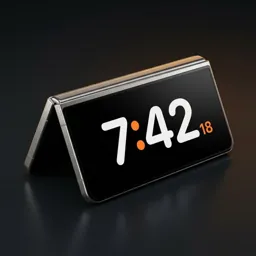
Samsung Always On Display in landscape: where it went
A few years ago you could turn a Galaxy on its side on the charger and the Always On Display followed it into landscape — the closest thing Samsung had to iPhone's StandBy. On newer Galaxy phones many people can't find that option any more. Here's what to check, and what to use instead.
What happened to landscape AOD?
Older One UI versions had a Screen orientation setting inside Always On Display, so the clock turned sideways when the phone lay in landscape. Since One UI 6, owners on Samsung's own community forums report that the setting has disappeared, and there are long threads asking Samsung to bring it back. Samsung hasn't said it will.
So if you've searched every menu and can't find it, you're not missing anything — on many current Galaxy phones the AOD simply stays upright.
First, check your own phone
- Open Settings › Lock screen and AOD › Always On Display (on older phones: Settings › Lock screen › Always On Display).
- Look for Screen orientation. If it's there, choose Landscape — your model still has it.
- If it isn't there, check Settings › Display › Screen saver. Some Galaxy models can show a screen saver while charging, but a clock isn't offered on every model.
- If neither gives you a clock you can read from bed, use one of the options below.
Set your Android down. The clock turns on by itself.
Try Duo Standby free for 3 daysOption 1: keep the AOD upright
The simplest fix is to stand the phone in portrait on a charging stand. The AOD clock works, but it's small and dim — fine for a quick glance, hard to read from across the room, and it shows the same thing whether the phone is on the desk or in your hand.
Option 2: a StandBy-style clock that turns on by itself
If what you actually want is the iPhone StandBy experience — set the phone down on its side and a big clock fills the screen — an app can do it. Duo Standby notices when the phone has been set down on a stand or charger and shows a full-screen clock within about two seconds, over the lock screen. Pick the phone up and it steps aside. There's no app to open each night.
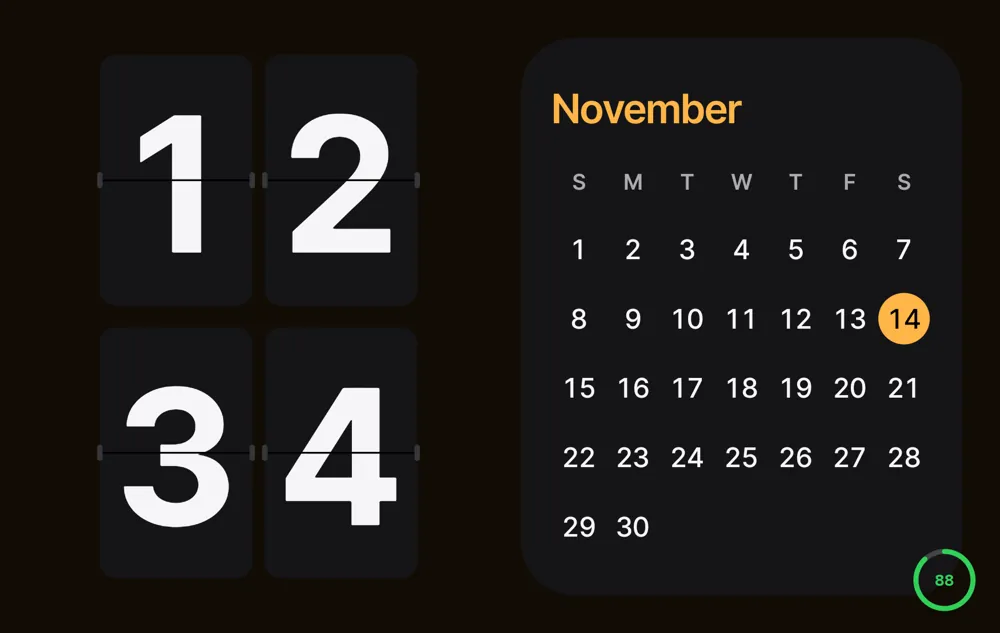
- Works in landscape and portrait on any Galaxy S or A phone.
- Choose whether it starts only while charging or whenever the phone is propped up.
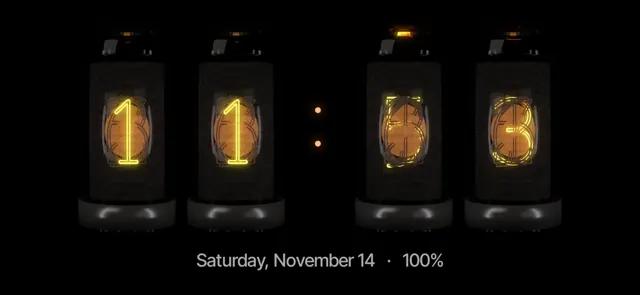
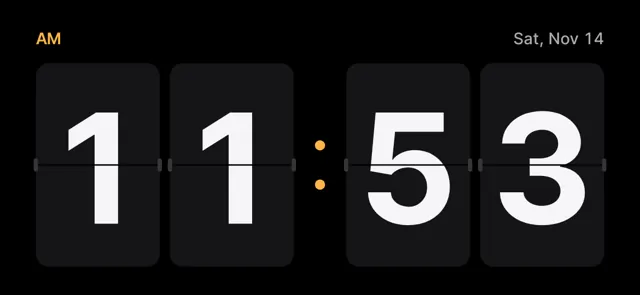
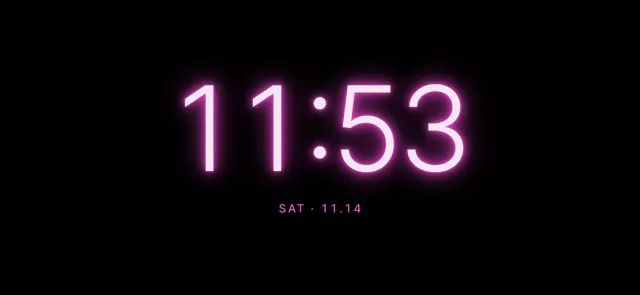
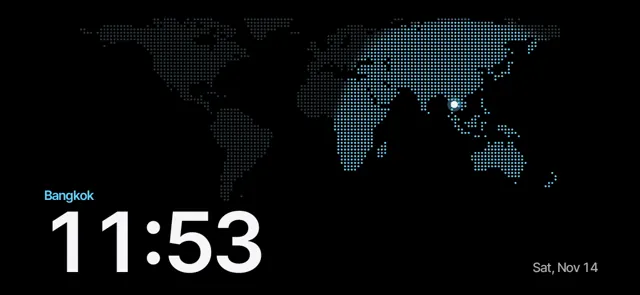
- 66 clock faces — nixie tubes, flip, neon, world map and more. Hold the clock to change it.
- Clock only, half and half, or four blocks with a calendar, today's events, music, a photo frame or your home-screen widgets.
- Red night mode and gentle pixel shifting for long nights on an OLED screen.
Set your Android down. The clock turns on by itself.
Try Duo Standby free for 3 daysAOD vs. a StandBy clock
| Always On Display | StandBy-style clock | |
|---|---|---|
| Landscape | Missing on many newer Galaxy phones | Yes, and portrait |
| Size | Small clock on a dark screen | Full screen, readable across the room |
| When it shows | Whenever the screen is off | When the phone is set down; goes away when you pick it up |
| Extras | Notifications, a few clock styles | Calendar, events, music, photos, widgets, night mode |
They don't conflict: keep the AOD for when the phone lies flat, and let the StandBy clock take over when it's standing on the charger.
Set it up
- Install Duo Standby from Google Play.
- Open the app once and allow the permissions it asks for (display over other apps and notification access are optional extras).
- Choose which postures should start the clock: landscape, portrait, and on a Fold also tent, book and tabletop.
- Decide whether it should start only while charging or any time the phone is propped up.
- Put the phone down on a stand or charger. The clock appears within about two seconds, and steps aside when you pick the phone up.
Tips for Galaxy phones
- Set the app's battery use to Unrestricted (Settings › Apps › Duo Standby › Battery) so One UI doesn't put it to sleep overnight.
- A stand that tilts the phone back a little is easier to read and is clearly 'set down' to the sensors.
- On the nightstand, use clock only with red night mode at low brightness.
- For the weather, add Samsung's weather widget as one of the blocks.
FAQ
Why can't I find landscape mode in Always On Display?
On many Galaxy phones running One UI 6 or later, the Screen orientation option is no longer in the AOD settings. Owners have reported it on Samsung's community forums; Samsung hasn't brought it back.
Is there a Samsung setting that shows a clock while charging?
Some models have a screen saver under Settings › Display › Screen saver, but a clock isn't available on every model, and it doesn't fill the screen like StandBy.
How do I get an iPhone-style StandBy clock on my Galaxy?
Use an app that starts a full-screen clock when the phone is set down, such as Duo Standby. It works in landscape and portrait on Galaxy S and A phones, and adds tent, book and laptop postures on a Galaxy Z Fold.
Will a landscape clock all night burn in the screen?
Any static image on OLED for hours carries some risk. Duo Standby shifts pixels gently and has a dim red night mode to reduce it.
Does it work while the phone isn't charging?
Yes, if you allow it. You can set the clock to start only while charging, or any time the phone is propped up.
Set your Android down. The clock turns on by itself.
Try Duo Standby free for 3 days